Your phone needs a clear-out, not another cleaner app
Old apps, generous permissions and an untested photo backup are worth a closer look. Here’s how to tidy your phone without deleting anything you actually need.
Reviewed, edited and approved by Editor-in-chief Daniel Sköld · Updated 20 October 2026
Contents
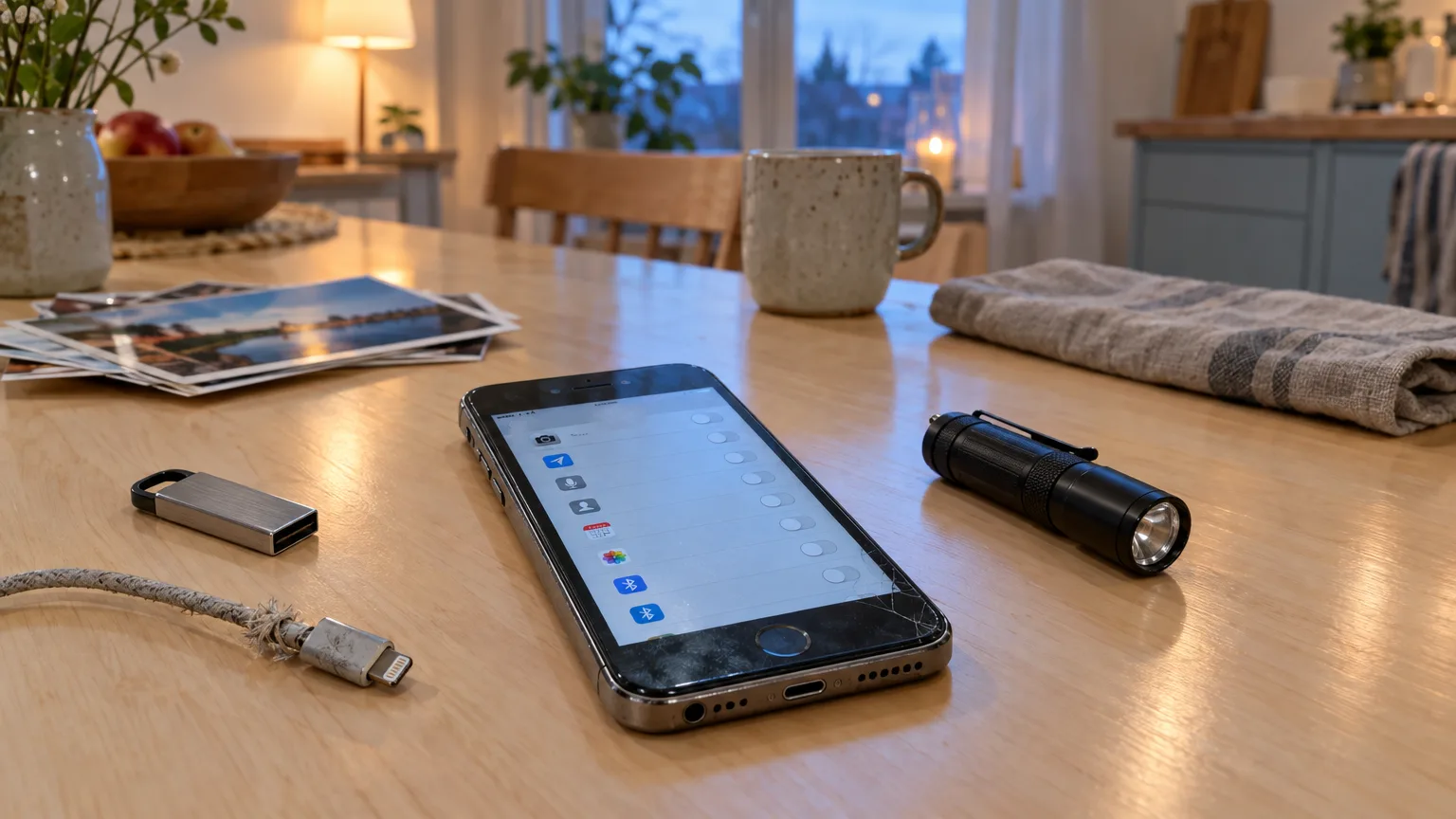
Your phone probably contains a small museum of abandoned intentions: a parking app for a city you visited once, a fitness app from a brief burst of optimism, and something that claims to improve the battery. None deserves a permanent place simply because you forgot it was there.
The useful clear-out is not about making every screen look immaculate. It is about deciding which apps you still trust, limiting what they can access and checking that the things you cannot replace would survive a broken phone.
AD
Which apps should you delete first?
Start with apps whose purpose you cannot remember, then those you installed for a single trip, event or purchase. An old app is not automatically dangerous: your phone may update it, and Android can revoke permissions from apps left unused for a long time. But an app you never open gives you little reason to keep trusting its developer, its updates or its requests for information.
Pay particular attention to apps that duplicate something your phone already does, such as a torch, document scanner or QR-code reader. That does not make every third-party version suspect. It does mean the app should earn its place. If its main achievement is showing adverts while asking to see your contacts, the decision is not difficult.
On an iPhone, press and hold an app and choose Remove App, then Delete App. Remove from Home Screen is different: it leaves the app in your App Library. On Android, look in Settings under Apps to review what is installed; menus vary between manufacturers. Android’s Unused apps list can help identify candidates, but do not mistake automatic permission removal for an actual clear-out.
Before deleting something important, check whether it holds files, recordings or drafts only on the handset. This matters more for a voice recorder or specialist work app than for a forgotten takeaway app. If you are unsure, open it once and check how its contents are saved. Deleting first and investigating afterwards is an unusually efficient way to discover that your notes were never backed up.
How do you check what your apps can see?
An app permission is your phone’s approval for software to use something such as your location, camera, microphone, contacts or photos. Some requests are obvious: a map needs your location to give directions. Others deserve a second look. Does a shopping app need your precise location all the time, or a simple location search when you use it?
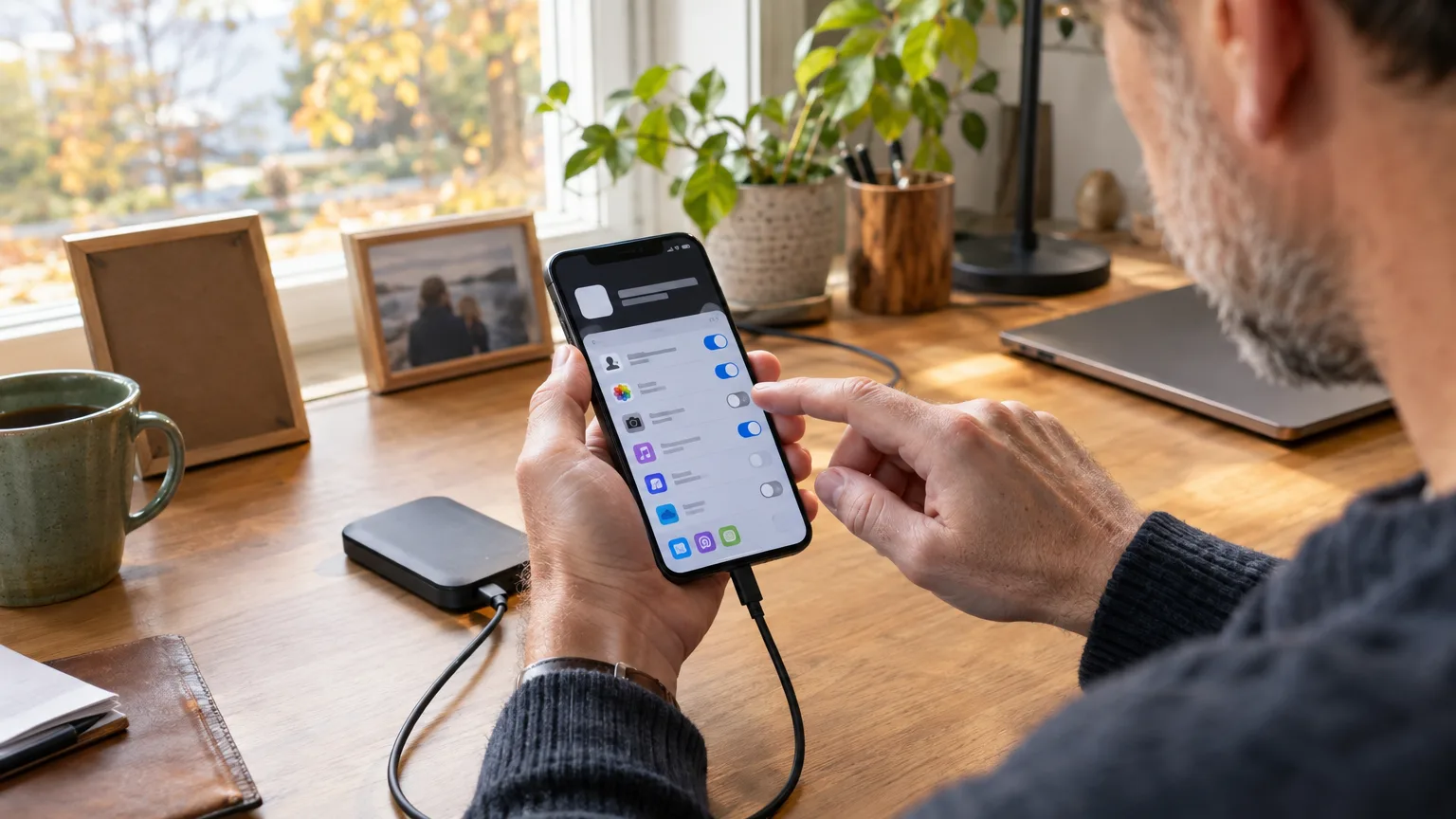
On iPhone, open Settings, then Privacy & Security. Choose a category such as Location Services, Photos, Contacts, Camera or Microphone and inspect the apps listed. You can change access individually. Apple’s App Privacy Report, in the same area, shows how apps have used granted permissions and their network activity; it is a useful prompt for questions, not proof that every connection is sinister.
On Android, look in Settings under Security and privacy or Privacy for the Privacy dashboard. It can show which apps accessed particular permissions and when; the route and available features depend on your phone and Android version. You can also open an app’s entry under Settings and review its permissions there.
If an app cannot explain why it needs access, you do not have to give it access.
Be practical rather than theatrical. A video-calling app needs a microphone while you are making a call. It does not follow that every app needs unrestricted access to every photo you have taken. Where your phone offers a narrower choice, try it. If a feature stops working, you can reconsider the permission then. Check again occasionally, particularly after installing an app for a one-off job.
AD
Will deleting an app cancel its subscription?
No. Apple and Google both warn that removing an app does not, by itself, cancel an in-app subscription. That abandoned language course could carry on billing you while its icon enjoys retirement.
Check subscriptions before you remove paid apps. On iPhone, look in Settings under your name, then Subscriptions. On Android, check Subscriptions in Google Play using the Google account you paid with. If nothing appears, inspect your emails or bank statements: you may have subscribed directly with the company rather than through Apple or Google. Cancel through whoever takes the payment, and keep the confirmation.
Deletion has another limit. It removes software from your phone; it does not necessarily close an account or erase information already sent to the provider. If you no longer want the service, look for an account-deletion option or contact the company. Under the UK General Data Protection Regulation (UK GDPR), which took effect on 1 January 2021, you can ask an organisation to erase personal data it holds about you in certain circumstances. The right is not absolute, so do not treat uninstalling as a magic wipe of somebody else’s servers.
This is the least glamorous part of a phone tidy-up, but potentially the most worthwhile. A clear home screen is pleasant. Stopping a payment for something you no longer use is better.
Are your photos actually backed up?
Before chasing free storage, check what would happen if your phone failed tonight. A backup is a separate copy of important data that you can recover. Seeing a photograph in an app on your phone does not, on its own, prove another copy exists.
On iPhone, check Settings under your name, iCloud and iCloud Backup to see whether device backup is enabled and when it last ran. Check Photos in your iCloud settings separately: iCloud Photos synchronises your library across devices, while iCloud Backup covers device information that is not already synchronised. If you use Google Photos on Android, open it and check its backup status; do not assume every folder you care about has been included.
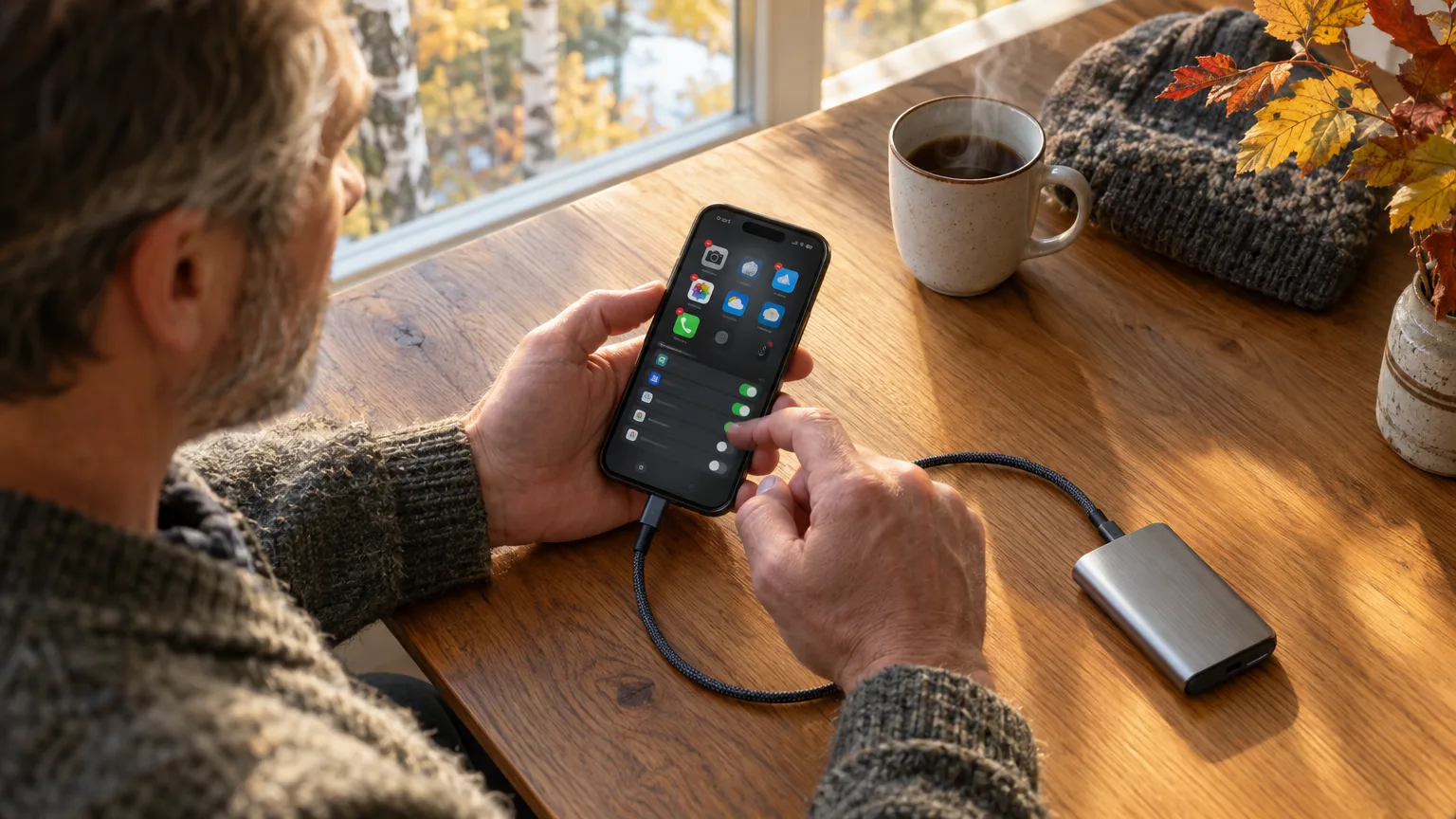
Then test the result. Sign in from another device or a browser and look for a photograph taken recently, along with any documents you could not easily recreate. Check that you can access the account itself. For irreplaceable family pictures, the National Cyber Security Centre recommends considering both a cloud copy and a copy on removable storage. An external drive kept somewhere sensible is less convenient than automatic syncing, but convenience is not the same as a second independent copy.
Beware the difference between freeing space and deleting a picture. With iCloud Photos switched on, deleting a photo in Apple’s Photos app also deletes it from your other devices using that library. Deleting an item in Google Photos can remove its backed-up copy too. Google Photos has a separate Free up space on this device feature for removing local copies that have been backed up. Read the button before you press it; family photographs are a poor place to practise optimistic tapping.
Finally, check for phone and app updates. The NCSC advises installing security updates promptly and enabling automatic updates where possible. If your handset no longer receives security updates, removing a few old apps is useful housekeeping, not a substitute for support from its manufacturer. You need not buy the newest flagship, but a supported phone deserves a place on your next shopping list.
In short
Delete apps you no longer use, review the permissions of those you keep, and check subscriptions separately before uninstalling. Verify that recent photos and important files exist somewhere other than the phone, ideally with another copy of anything irreplaceable. A tidy screen is nice; fewer unnecessary permissions and a backup you have actually checked are the point.
Alex Innes explains technology for men 45 and over who have seen every gadget since the ZX Spectrum and are not easily impressed. AI and ChatGPT, phones, cars, the smart home, the subscriptions worth keeping and staying safe online – what it does, whether it's worth the money, and whether you need it at all.
One of Midcent's writers. Spotted something? Write to alex@midcent.uk.
Software, streaming and even features in things you own now come with recurring bills. Here’s how to tell a useful subscription from an expensive habit.
AI can sift applications, set shifts and flag performance. That does not make it a good manager. Here is where the software helps, where it fails and what you can challenge.
Your best summer pictures are buried beneath screenshots and receipts. Here is how to find them, keep a safe copy and reclaim phone space without another subscription.