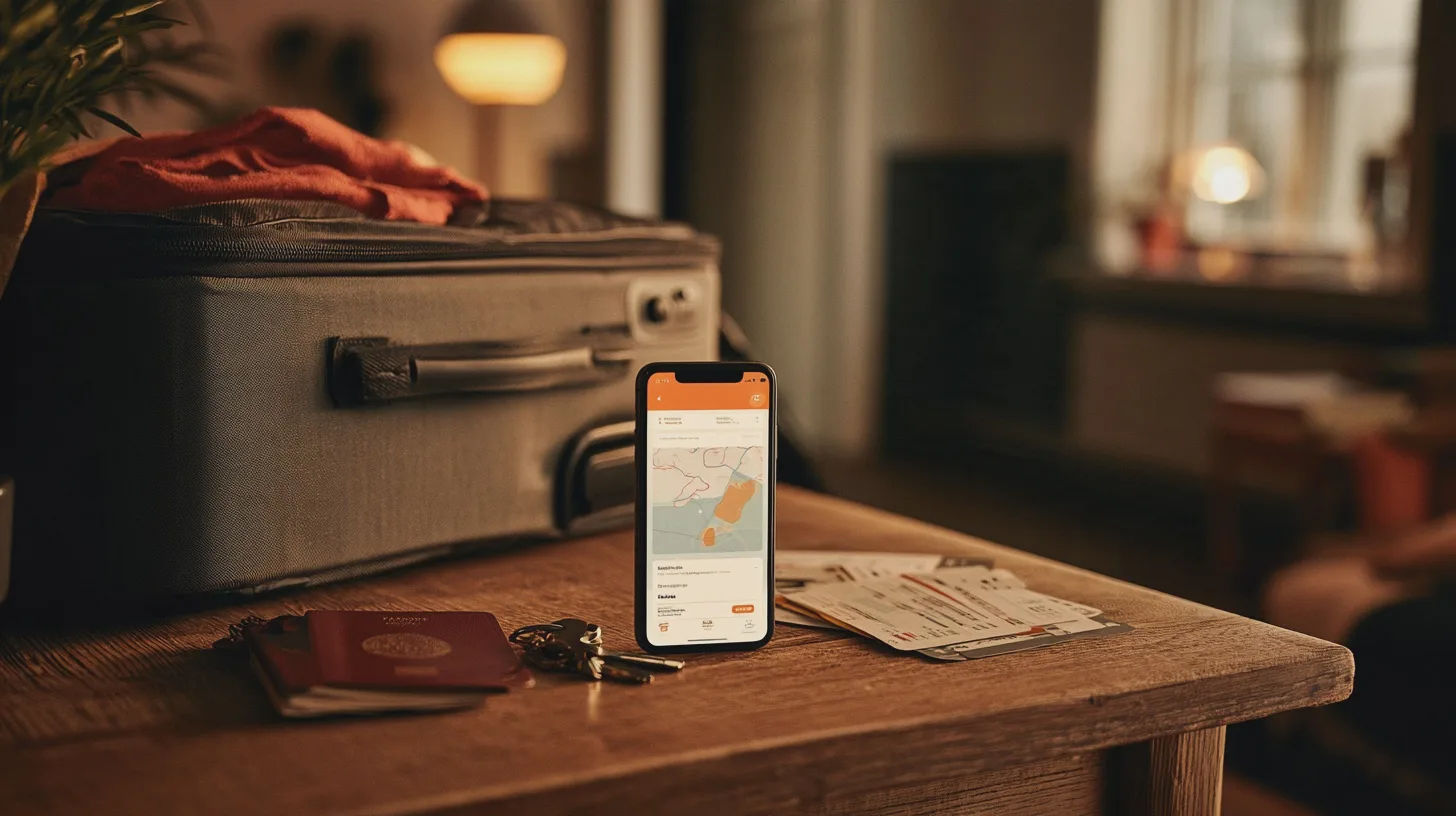
Picture it. You’re on the last night of a week in the Algarve, you pat your pocket, and the phone isn’t there. Annoying, obviously. Then the second wave hits: your email, your Amazon account, your bank and half the apps you rely on all expect that phone to prove who you are.
Passkeys are the new way to log in that the tech giants have been pushing hard, and they really are better than passwords. But they move the weak point. It used to be your memory. Now it’s a slab of glass you can leave in a taxi. The fix takes about an hour at home, and you’ll want to do it before you need it.

What is a passkey, and why is it tied to my phone?
A passkey replaces your password with a pair of digital keys. One sits with the website. The other stays on your device, locked behind your fingerprint, your face or your screen PIN. When you log in, the two keys check each other quietly in the background. You never type anything, so there’s nothing for a scammer to phish out of you with a convincing fake login page.
That’s the big win. The catch is the word device. If the private half of the key only lives on your phone, losing the phone means losing the key.
Fortunately, most people’s passkeys don’t work that way. Apple, Google and Microsoft all offer what are called synced passkeys, where an encrypted copy is backed up to your account in the cloud. Lose the phone, sign in to your Apple or Google account on a new one, and your passkeys come back with everything else.
So the real question isn’t whether you lose your passkeys. It’s whether you can still get into the account that holds them.
A passkey is only as safe as your route back into the account that stores it.
How do I recover passkeys after losing my phone?
It depends whose ecosystem you live in.
Apple. On an iPhone, passkeys sit in iCloud Keychain and sync to any iPad or Mac signed in to the same Apple Account. If you have a second Apple device, you’re in good shape already. If the iPhone is your only Apple gadget, go to Settings, tap your name, then Sign-In and Security, and set up account recovery. You can add a recovery contact, a trusted person with an Apple device who can generate a code to help you back in. Apple also lets you create a recovery key, a long code that you have to keep somewhere safe. Be warned: a recovery key is strict. Lose it, along with your devices, and Apple can’t help you.
Google. On Android, passkeys are kept in Google Password Manager and synced through your Google account. Signing in on a new device can ask you to confirm with the screen lock of an old device or a Google Password Manager PIN, so make a note of that PIN when you set it. While you’re in your Google account’s security page, generate a set of backup codes. These are one-time codes that get you past two-step verification when your phone isn’t there to do it. Print them. Don’t save them as a photo on the phone you’re worried about losing.
Microsoft. This one needs more care. Passkeys saved in Windows Hello on a PC belong to that machine, and Microsoft’s own support pages say that passkeys stored in the Microsoft Authenticator app are tied to the device and can’t be restored to a new one. If that phone goes, you’ll have to sign in another way and make a new passkey. So for your Microsoft account, keep a recovery email and phone number up to date, and turn on Authenticator’s cloud backup for the ordinary one-time codes it holds.

Build a second way in before you travel
Security people have a saying: the cure isn’t recovery, it’s redundancy. In practice, that means having more than one way through each important door.
Start with a second device. An old phone in a drawer, a tablet or a laptop signed in to the same Apple or Google account counts as a backup key. Leave one at home and one in your bag, and a single loss won’t strand you.
Next, register more than one passkey on the accounts that matter. Most services let you add several. A hardware security key, a small USB or NFC fob that works as a passkey, is the belt-and-braces option for your main email account. Keep it at home, away from your phone.
Then sort out the paperwork. Backup codes for Google and Microsoft, your Apple recovery key if you chose one, and a recovery contact who knows what to do if you call from a borrowed phone. Store the printouts somewhere sensible, like a home safe or with your will papers, not in your wallet next to your cards.
Finally, check your recovery phone number. If it’s the number on the SIM you’ve just lost, it won’t do you much good until your network sends a replacement.
What about my banking app if my phone is lost?
Banks treat a new phone with deep suspicion, and that’s how it should be. Getting back in usually means going through identity checks again, which is much easier at home than in a hotel lobby.
Before you go, look up how your bank handles a new device. Barclays and NatWest have both used handheld card readers. You put your debit card in, type your PIN and get a code that confirms you’re you, no phone needed. If your bank offers one, put it in your suitcase, or at least know where it lives. Lloyds and most other high-street banks also let you log in to online banking in a web browser, which can help if the app is unavailable. Monzo, which is app-first, can ask you to verify yourself again on a new phone, sometimes with a short video selfie, so make sure your registered email address still works.
Keep your bank’s lost-card and fraud phone numbers written down somewhere other than your phone. It sounds old-fashioned. It is old-fashioned. It also works when everything else doesn’t.
The phone has gone: what to do first
Use a borrowed device or a hotel computer to log in to Find My on iCloud or Google’s Find My Device. Lock the phone, show a contact number on its screen and, if it’s clearly not coming back, erase it. Erasing doesn’t remove your synced passkeys from the cloud. It just takes them off the lost handset.
Call your mobile network to block the SIM, so nobody can use your number to receive security texts. Tell your bank. Then, from a trusted device, remove the lost phone from your Apple, Google and Microsoft accounts so it can’t be used to approve logins.
Once you have a new phone, sign in to your main account and let your passkeys sync back. Then make fresh passkeys for anything that was stuck on the old handset.
In short
Losing your phone doesn’t have to mean losing your passkeys, because Apple and Google sync them through your account, so what really matters is being able to get back into that account. Set up a second signed-in device, print your backup codes, add a recovery contact or key, and know how your bank verifies a new phone. Be careful with Microsoft Authenticator, because passkeys stored there stay on that one device. Do all of this before you travel, not from a hotel lobby.
Sources

Midcent Tech
Alex Innes explains technology for men 45 and over who have seen every gadget since the ZX Spectrum and are not easily impressed. AI and ChatGPT, phones, cars, the smart home, the subscriptions worth keeping and staying safe online – what it does, whether it's worth the money, and whether you need it at all.
One of Midcent's writers. Spotted something? Write to alex@midcent.uk.